
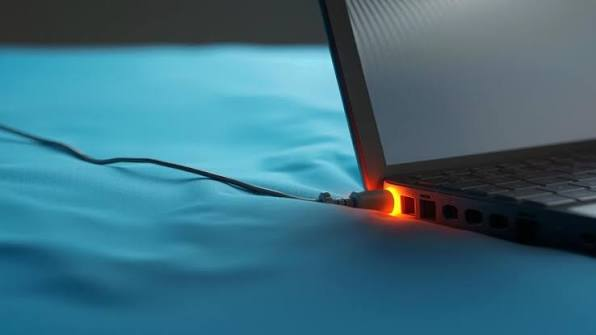

Gaming laptops are designed to deliver high performance, especially when connected to a power adapter. However, some users notice an unexpected problem: their gaming laptop loses FPS while plugged in instead of running games more smoothly. This can be frustrating when you expect better performance during long gaming sessions.
The issue can occur because of incorrect power settings, overheating, graphics card configuration, a faulty charger, or background processes. Understanding these causes can help you identify the problem without replacing expensive hardware unnecessarily. Technology resources such as gadgetfreek can also help readers explore practical solutions to common computer and gaming problems.
In this guide, we will explain why a gaming laptop may experience FPS drops while plugged in, how to diagnose the cause, and which troubleshooting steps can help restore stable gaming performance.
1. Incorrect Power Management Settings
One of the most common reasons for FPS drops is an incorrect power management configuration. Although a laptop is connected to electricity, its operating system or manufacturer software may still limit processor and graphics performance.
Windows includes power modes that control how aggressively the system uses its hardware. If the laptop is configured for power efficiency, the CPU or GPU may not reach the performance levels required for demanding games.
How to Fix Power Mode Settings
Follow these steps to check your Windows power configuration:
- Open the Windows Settings application.
- Navigate to System and select Power & battery.
- Find the Power mode option.
- Select a performance-oriented mode, such as Best performance, if available.
- Restart your game and check whether the FPS improves.
The available options depend on your Windows version and laptop manufacturer.
You should also check any manufacturer-specific control software. Applications from gaming laptop brands often include Silent, Balanced, Performance, and Turbo modes. Selecting a quiet or battery-saving profile can reduce fan speed and limit hardware performance even when the laptop is plugged in.
2. Overheating and Thermal Throttling
Overheating is another major cause of gaming laptop performance problems. Gaming generates substantial heat because the processor and graphics card must perform thousands of calculations every second.
When temperatures become too high, the laptop automatically reduces component speeds to prevent damage. This behavior is known as thermal throttling.
Interestingly, a laptop may initially deliver excellent FPS and then experience sudden drops after 15 or 20 minutes of gameplay. This pattern often indicates that heat is affecting performance.
Signs of Thermal Throttling
Look for these symptoms:
- FPS decreases as the gaming session continues.
- The laptop becomes unusually hot.
- Cooling fans run loudly or inconsistently.
- Games stutter during demanding scenes.
- CPU or GPU clock speeds drop under heavy load.
How to Reduce Laptop Temperatures
Start by placing the laptop on a hard, flat surface. Avoid using it on a bed, blanket, or cushion because these surfaces can block ventilation openings.
Clean dust from the air vents using appropriate cleaning methods. If dust has accumulated inside the cooling system, professional cleaning may be necessary.
You can also use a laptop cooling pad, reduce unnecessary background workloads, and select an appropriate fan profile.
Monitor CPU and GPU temperatures with a reputable hardware-monitoring application. Compare temperatures, clock speeds, and FPS during the same game rather than relying on temperature readings alone.
3. The Laptop Is Using the Wrong Graphics Processor
Many gaming laptops contain two graphics processors: integrated graphics built into the CPU and a dedicated GPU from NVIDIA or AMD.
Integrated graphics consume less power and are suitable for everyday tasks. Dedicated graphics processors provide substantially greater performance for demanding games.
Sometimes, a game launches using integrated graphics instead of the dedicated GPU. This can cause low FPS, inconsistent performance, or unexpected stuttering.
How to Select the Dedicated GPU
On supported Windows systems, you can choose which graphics processor an application should use.
- Open Windows Settings.
- Navigate to System, then Display.
- Open Graphics.
- Select your game or add its executable file.
- Open Options and select High performance, if available.
- Save the selection and restart the game.
You can also check the NVIDIA Control Panel or AMD software for graphics configuration options supported by your device.
Keep in mind that some laptops manage graphics switching automatically. A game may also use integrated graphics for certain tasks while rendering through the dedicated GPU. Therefore, verify actual GPU usage before changing advanced settings.
4. A Faulty or Underpowered Charger
A gaming laptop generally needs an appropriate power adapter to operate at its intended performance level. Connecting a charger does not automatically guarantee that the system is receiving sufficient power.
If the charger is underpowered, damaged, incompatible, or not correctly recognized, the laptop may restrict CPU and GPU performance.
This can happen when someone uses a smaller USB-C charger instead of the manufacturer’s recommended adapter or replaces the original charger with an incompatible model.
Check Your Power Adapter
First, verify that the adapter matches your laptop’s required specifications. Check the wattage, voltage, connector type, and manufacturer’s recommendations.
Next, inspect the charging cable and connector for visible damage. Make sure the connection is secure and check whether the laptop displays a warning about an unrecognized adapter.
If the battery percentage decreases during intensive gaming despite being plugged in, the adapter may not be supplying enough power for the combined system load. Some gaming laptops intentionally draw additional power from the battery during demanding workloads, so this symptom alone does not prove that the charger is faulty.
Avoid using an adapter with unsuitable specifications. If you suspect a power delivery issue, test with a compatible, manufacturer-approved charger.
5. Outdated or Incorrect Graphics Drivers
Graphics drivers allow the operating system, game, and GPU to communicate correctly. An outdated, corrupted, or problematic driver can cause FPS drops, graphical glitches, crashes, and stuttering.
A driver update may sometimes introduce performance issues in particular games, too. Therefore, installing the newest version is not always the only possible solution.
Update or Reinstall Your Graphics Driver
Identify your graphics card using Device Manager or your manufacturer’s graphics software. Then download a compatible driver from the official NVIDIA, AMD, or laptop manufacturer’s support website.
Install the driver according to the provided instructions and restart your laptop.
If the problem began immediately after a driver update, consider returning to a previously stable version. Before performing a clean installation or using advanced driver-removal utilities, make sure you understand the process and have access to the correct replacement driver.
Also install relevant Windows updates and check whether the problem affects one particular game or every game.
6. Background Applications Are Consuming Resources
Even powerful gaming laptops can experience FPS drops when unnecessary applications consume CPU, GPU, memory, or storage resources.
Background activities such as antivirus scans, large downloads, cloud synchronization, game updates, and browser tabs may compete with your game for system resources.
Recording software and overlays can also affect performance, particularly on laptops with limited memory or graphics capacity.
Identify Resource-Heavy Applications
Press Ctrl + Shift + Esc to open Task Manager.
Check the Processes tab and look for applications using unusually high amounts of CPU, memory, GPU, or disk resources.
Close unnecessary applications before launching your game. Avoid ending unfamiliar Windows processes because doing so can cause instability.
If you use game-recording software, streaming tools, or multiple overlays, temporarily disable them and compare the results.
The goal is not to shut down every background process. It is to identify applications that create a measurable performance bottleneck.
7. Incorrect Game Settings
Sometimes, the laptop is working correctly, but the game settings are too demanding for the available hardware.
High-resolution textures, ray tracing, demanding shadows, and advanced lighting can significantly increase GPU workload. Running a game at a higher resolution than necessary may also reduce FPS.
Certain games have frame-rate limits, while others use dynamic resolution or graphics scaling.
Settings Worth Checking
Try these adjustments individually:
- Reduce ray tracing or disable it temporarily.
- Lower shadows and demanding lighting effects.
- Check the game’s resolution and render scale.
- Disable unnecessary recording and overlay features.
- Review the frame-rate cap and V-Sync settings.
- Test an appropriate upscaling option if your GPU supports it.
Change one setting at a time and compare performance in the same game scene. This makes it easier to identify which setting is responsible for the FPS difference.
8. BIOS, Firmware, or Manufacturer Performance Profiles
Gaming laptops often use firmware and manufacturer software to control cooling, charging, fan speeds, and power distribution.
A quiet profile may prioritize lower noise levels over maximum performance. In some cases, outdated firmware or incorrect manufacturer settings can also contribute to power-management problems.
Open your laptop manufacturer’s control application and check the selected performance profile. If your model supports a dedicated gaming or performance mode, test it while monitoring temperatures and FPS.
BIOS and firmware updates should be treated carefully. Only install updates intended for your exact laptop model, follow the manufacturer’s instructions, and avoid interrupting the update process.
Do not change advanced BIOS voltage, CPU, or GPU settings unless you understand their effects and your manufacturer supports those adjustments.
9. How to Diagnose FPS Drops While Plugged In
Instead of changing many settings at once, use a systematic troubleshooting process.
Step 1: Establish a Performance Baseline
Run the same game at the same graphics settings for several minutes. Record the average FPS, temperature, and whether the problem appears immediately or after the laptop heats up.
Step 2: Check CPU and GPU Usage
Use a reputable monitoring tool to observe CPU usage, GPU usage, temperatures, and clock speeds. High GPU usage may indicate a graphics limitation, while falling clock speeds alongside high temperatures may suggest thermal throttling.
Step 3: Compare Power Profiles
Test the laptop’s Balanced and Performance modes. Keep the game settings and test conditions consistent.
Step 4: Verify the Charger
Confirm that the laptop recognizes its adapter and that the adapter meets the device’s power requirements.
Step 5: Test Driver and Game Changes
Update or roll back graphics drivers when appropriate. Temporarily disable unnecessary overlays and test less demanding graphics settings.
For additional technical guidance on graphics performance and troubleshooting, consult the official Microsoft DirectX documentation.
This step-by-step approach helps separate software problems from cooling, power delivery, and hardware limitations.
Conclusion
A gaming laptop losing FPS while plugged in can have several causes, including incorrect power settings, thermal throttling, integrated graphics selection, an underpowered charger, outdated drivers, and demanding game settings.
Start with the simplest checks: confirm the power mode, select the appropriate graphics processor, inspect background resource usage, and monitor temperatures. If performance drops only after the laptop becomes hot, investigate its cooling system. If the problem occurs immediately when plugged in, examine the charger and power-management configuration.
By testing one possible cause at a time, you can identify the source of the FPS drops and restore more consistent gaming performance without making unnecessary hardware changes.