
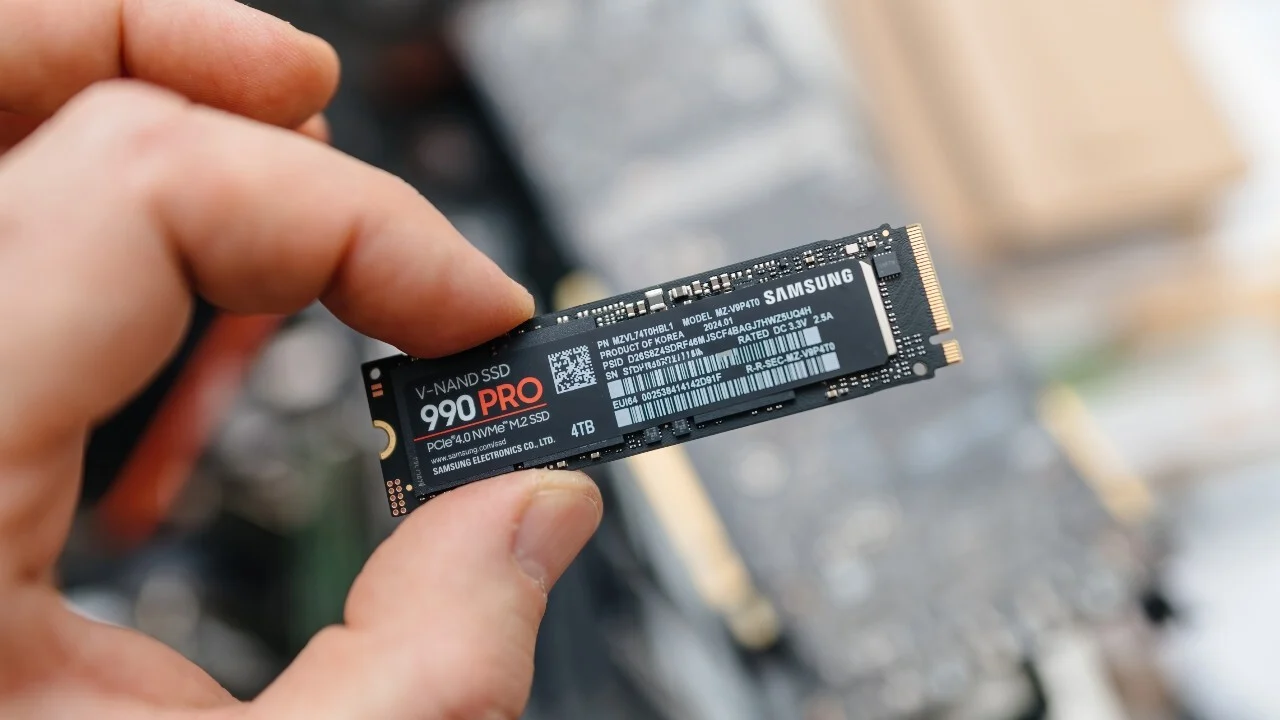

An SSD (Solid-State Drive) is designed to provide fast performance, reliable storage, and quick access to files. However, some Windows users notice that their SSD shows less available space than expected or reports a storage capacity that does not match the number printed on the drive. This can be confusing, especially when the SSD is new or contains only a few files.
Windows may display incorrect SSD storage space for several reasons, including the difference between advertised and usable capacity, hidden system files, recovery partitions, temporary files, or disk partitioning issues. Understanding these causes can help you identify whether the difference is normal or indicates a problem that needs attention.
If you regularly troubleshoot computer storage issues, resources such as ScoopByte can also help you explore practical technology topics and learn more about managing your computer effectively.
1. Why Does SSD Capacity Look Different in Windows?
One of the most common reasons for an SSD showing less storage than expected is the difference between how manufacturers and Windows calculate capacity.
SSD manufacturers usually advertise storage using the decimal system. In this system, 1 GB equals 1,000,000,000 bytes. Windows may display capacity using binary-based calculations, where 1 GiB equals 1,073,741,824 bytes, although Windows commonly labels the displayed unit as GB.
Because these calculations are different, a drive advertised as 500 GB may appear to have approximately 465 GB in Windows before accounting for formatting and partitions. A 1 TB SSD may similarly appear to have around 931 GB.
This difference is generally normal and does not mean your SSD is defective.
How to Check the Advertised and Actual Capacity
To check your SSD’s capacity:
- Press Windows + X.
- Select Disk Management.
- Locate your SSD in the list of disks.
- Review the total capacity and the partitions displayed on the drive.
You can also open File Explorer, select This PC, and review the capacity shown for each accessible drive.
If the displayed capacity is close to the expected binary conversion, there may be no problem with your SSD.
2. Hidden System Files Can Use SSD Space
Windows requires storage space for essential operating system functions. Some of these files are hidden from normal File Explorer views, so the space they occupy may not be immediately obvious.
Common examples include:
- Page file: Uses storage to support virtual memory when Windows needs additional memory resources.
- Hibernation file: Stores system information to support hibernation.
- System restore data: Stores restore points that can help recover Windows after certain software or configuration problems.
- Temporary files: Created by Windows, applications, updates, and everyday computer activities.
- Windows update files: May temporarily occupy additional storage during downloads and installations.
These files can use several gigabytes, depending on your system configuration, installed applications, and usage habits.
How to Check Storage Usage
Windows includes a built-in storage analysis feature.
- Open Settings.
- Select System.
- Click Storage.
- Wait for Windows to calculate the storage categories.
- Review sections such as Installed apps, Temporary files, System and reserved, and Other.
This page helps you identify which categories are consuming the most space.
Avoid deleting unfamiliar system files manually. Some are necessary for Windows to operate correctly.
3. Recovery Partitions Can Reduce Usable Storage
A new or previously used SSD may contain several partitions. A partition is a section of a physical drive that Windows treats as a separate storage area.
For example, a Windows installation may include:
- An EFI system partition used for booting.
- A Microsoft Reserved partition on supported disk configurations.
- A main Windows partition.
- A recovery partition used for troubleshooting or restoring the operating system.
These partitions occupy physical storage even when they do not appear as regular drives in File Explorer.
Consequently, the capacity of the main C: drive may be smaller than the total capacity of the SSD.
How to Inspect SSD Partitions
Open Disk Management by right-clicking the Start button and selecting Disk Management.
Look at the partitions associated with your SSD. Their combined capacity should help explain how the physical drive is divided.
Do not delete recovery or EFI partitions simply because they appear to be taking up space. Removing them can interfere with Windows startup or recovery options.
If the partition layout looks unusual, back up important data before making changes.
4. Temporary Files and Windows Updates May Fill the Drive
Sometimes, an SSD reports less free space because Windows and installed applications have accumulated temporary data.
This may happen after a major Windows update, while installing software, or when downloading large files.
Temporary files are not always unnecessary immediately after they are created. Some are needed to complete updates or support application operations. However, other temporary files can often be removed safely through Windows settings.
How to Remove Unnecessary Temporary Files
Follow these steps:
- Open Settings.
- Navigate to System and then Storage.
- Select Temporary files.
- Review the available categories.
- Select the files you want to remove.
- Click Remove files.
Read each category carefully before confirming the deletion. The Downloads folder, for example, may contain personal files that you want to keep.
You can also enable Storage Sense to help Windows automatically manage certain temporary files and reclaim space.
5. Unallocated Space May Not Appear in File Explorer
Another reason an SSD can appear to have less storage is unallocated space.
Unallocated space is a portion of a physical drive that has not been assigned to a partition. Windows cannot use it as a normal storage location until it is configured appropriately.
This situation can occur after resizing partitions, cloning a drive, installing Windows, or connecting an SSD that was previously used in another computer.
How to Identify Unallocated Space
- Press Windows + X.
- Open Disk Management.
- Find your SSD.
- Look for an area labeled Unallocated.
If unallocated space exists, it may explain why the capacity of your accessible partition is smaller than expected.
Depending on your disk layout, you may be able to extend an existing partition or create a new volume. However, extending a partition may be unavailable when the unallocated space is not positioned appropriately.
Before changing partitions, back up important files. If you are unsure which partition should be modified, seek technical assistance rather than deleting partitions at random.
6. SSD Formatting and File System Overhead
When an SSD is prepared for use, Windows typically formats a partition with a file system such as NTFS. Formatting creates the structures needed to organize files, manage directories, and track storage allocation.
The file system itself requires some storage, and its metadata can contribute to a small difference between raw capacity and usable space.
The exact amount depends on factors such as partition size, file system configuration, and the number and types of files stored.
Formatting does not normally explain a large unexplained capacity difference on its own. If several dozen gigabytes appear to be missing on an otherwise empty drive, investigate partitions, hidden files, and the drive’s reported physical capacity.
Also, remember that formatting a partition can erase its existing data. Do not format a drive simply to make its displayed capacity look correct.
7. A Disk Reporting Error or SSD Health Problem
In some cases, the displayed storage information may be inconsistent because of disk management issues, connection problems, outdated storage drivers, or an SSD that is malfunctioning.
A failing drive may also show other warning signs, such as repeated read or write errors, disappearing files, unusually slow operations, or unexpected disconnections.
If the reported capacity is significantly smaller than expected and the usual explanations do not account for the difference, investigate further.
Steps to Troubleshoot the Problem
Start with these checks:
- Restart Windows and check the capacity again.
- Open Disk Management to confirm the physical disk’s reported size.
- Check the SSD manufacturer’s utility, if available, for drive health and firmware information.
- Review Windows error messages for storage-related problems.
- If the SSD is external, inspect its cable, USB port, and enclosure.
Back up important files before running extensive troubleshooting if you suspect drive failure.
You can also consult Microsoft’s official Windows support website for guidance on Windows storage, disk management, and troubleshooting.
If a new SSD reports a capacity far below its advertised specification, or the drive repeatedly develops errors, contact the manufacturer or seller. A defective drive is possible, although it should not be assumed without checking the other causes first.
8. How to Prevent SSD Storage Confusion in the Future
You can reduce storage-related confusion by checking your drive periodically and understanding how Windows manages disk space.
Monitor Storage Regularly
Review Windows Storage settings every few weeks, particularly if you install large applications, download files frequently, or work with video and other large media.
Keep Windows Updated
Install appropriate Windows updates and storage-related driver updates. Updates can resolve some software issues, although they will not change the fundamental difference between decimal and binary capacity calculations.
Avoid Unnecessary Partition Changes
Do not resize, format, or delete partitions without understanding their purpose. A partition that does not have a drive letter may still be essential to Windows.
Maintain a Backup
Keep a backup of important documents, photos, and work files on another drive or a trusted backup service. This is especially important when troubleshooting a potentially failing SSD.
Conclusion
Windows can show less SSD storage than expected for several reasons, and many of them are completely normal. The difference between advertised and displayed capacity, hidden system files, recovery partitions, temporary data, and unallocated space are among the most common explanations.
Start by checking Disk Management and Windows Storage settings. These built-in tools can help you distinguish between normal capacity differences and storage that is being used or left unallocated.
If the difference remains unexplained, investigate the drive’s health and reported physical capacity before making changes. With careful troubleshooting and regular backups, you can manage SSD storage more confidently and avoid unnecessary data loss.